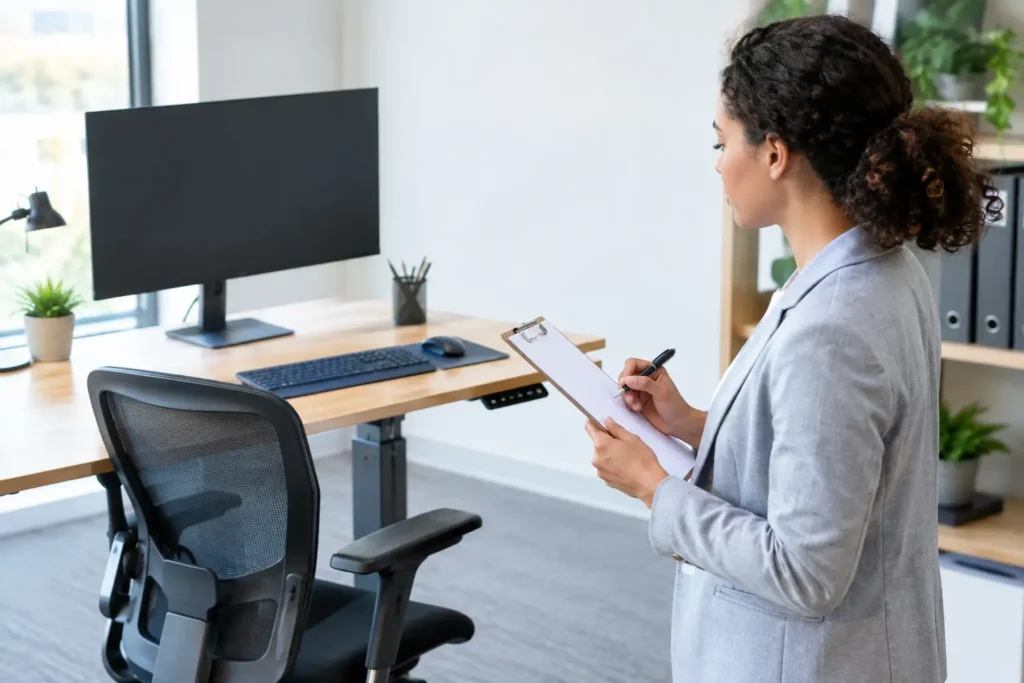
A workstation that looks tidy can still be poorly set up. A screen positioned too low, a chair without adequate adjustment or a laptop used all day at a kitchen table can contribute to discomfort, fatigue and reduced concentration. This workstation assessment guide gives UK employers a practical way to identify common issues, support employees and make reasonable adjustments without creating unnecessary administration.
For HR, People teams and wellbeing leads, the aim is not to prescribe one perfect desk arrangement. It is to give each person a workable setup that suits their role, body and working location. A clear process also helps demonstrate that workstation risks have been considered as part of a wider duty of care.
What is a workstation assessment?
A workstation assessment, often called a Display Screen Equipment (DSE) assessment, reviews how an employee works with screens, keyboards, mice, chairs, desks and related equipment. It considers the person, the equipment, their work habits and the environment around them.
The assessment should identify risks that may lead to musculoskeletal discomfort, eye strain or fatigue, then set out sensible actions. Those actions may be simple: raising a monitor, adjusting chair height, providing a separate keyboard for laptop users or encouraging regular movement breaks. In some cases, specialist equipment or occupational health advice may be appropriate.
For employers, the value lies in early intervention. Small changes made before discomfort becomes persistent are usually easier to arrange, less disruptive and more likely to keep employees working comfortably.
When employers should carry out a workstation assessment
Employees who regularly use display screen equipment as a significant part of their normal work should be considered for assessment. This includes office-based staff, home workers and hybrid employees. It can also apply to employees using screens in call centres, reception areas, control rooms and other fixed work locations.
An assessment should not be treated as a one-off induction form. Review it when an employee starts a new role, moves desk, begins hybrid working, receives different equipment, returns after a health-related absence or reports discomfort. A change in workload can also matter. Someone who previously used a laptop for occasional tasks may need a more suitable setup if screen-based work becomes their main activity.
For a large or multi-site organisation, a self-assessment questionnaire is often the most efficient starting point. It enables employees to identify straightforward adjustments and flags cases that need a manager, assessor or occupational health follow-up. The process should be easy to access and clear about what happens after a concern is reported.
The core areas to check
A useful workstation assessment focuses on practical working conditions rather than a long checklist with no action behind it. Ask the employee how they feel during and after work, then review their posture, equipment and space together.
Chair, desk and posture
The chair should provide stable support and allow the employee to adjust height and back support where possible. Feet should rest flat on the floor or on a footrest, with thighs supported and shoulders relaxed. The desk should give enough room for the keyboard, mouse, documents and any equipment used regularly.
There is no need to insist that everyone sits rigidly in one position. Good practice means supporting a neutral, comfortable posture and enabling movement throughout the day. Encourage employees to adjust their position, stand up between tasks and avoid working for long periods without a break.
Screen position and visual comfort
The main screen should generally sit directly in front of the user, at a comfortable viewing distance. The top of the display is commonly around eye level, although the right position depends on the user, their glasses and the task. Employees using two screens should position the most frequently used display centrally, or place both screens close together if use is evenly split.
Glare from windows or overhead lighting can make people lean forward, squint or adopt awkward positions. Check whether blinds, screen angle, desk location or task lighting could improve visual comfort. Employees should also know how to adjust text size, contrast and display settings where needed.
Keyboard, mouse and laptop use
The keyboard and mouse should be close enough to use with relaxed shoulders and elbows near the body. A mouse that is too far away is a common cause of repeated reaching. The equipment should be positioned so that the employee can keep their wrists reasonably straight rather than bent upwards or sideways.
Laptops are practical for meetings and short periods of mobile work, but they create a compromise between screen height and keyboard position. For regular desk-based use, a laptop stand, separate keyboard and mouse can make a substantial difference. The right approach depends on how often the employee is mobile and how long they work at the screen each day.
Home and hybrid workspaces
Home working assessments need the same practical attention, but not every employee has a dedicated office. A dining table may be a reasonable short-term solution if the employee has suitable equipment and is not working there for prolonged periods. A sofa, bed or low coffee table is unlikely to provide an appropriate regular workstation.
Employers should set clear expectations for hybrid staff: complete the assessment, report problems early and use provided equipment correctly. Consider whether employees need a basic home-working equipment package, particularly if they work remotely for several days each week. This can reduce variation between office and home setups without requiring extensive individual arrangements.
A practical workstation assessment process
Start by giving employees a short, plain-language assessment that covers their work pattern, equipment, work area and any discomfort. Avoid medical questions unless they are necessary and handled through the appropriate confidential route. The purpose is to identify workstation risks, not ask staff to diagnose themselves.
Next, make simple adjustments promptly. This may involve changing chair settings, supplying a monitor riser, moving a desk away from glare or providing a headset for employees who spend long periods on calls. Record the action, who is responsible and when it will be completed. A process loses credibility when employees report an issue but receive no update.
Where discomfort continues, arrange a more detailed review. A trained assessor can observe how the person works and consider whether specialist equipment, a different chair, a sit-stand solution or further advice is appropriate. It is sensible to take account of individual needs rather than assuming the standard setup will work for everyone.
Finally, check back after the adjustment. Equipment only helps when it is used and set up correctly. A brief follow-up can confirm whether the change has improved comfort or whether another step is required.
Common problems that are easy to miss
The most frequent issue is not always the chair. Employees may have a good chair but use it at the wrong height, work with the screen off to one side or spend hours looking down at a laptop. Desk clutter can also push the mouse too far away, while poor cable placement can limit where equipment can sit.
Breaks deserve attention too. Telling staff to take breaks is useful, but it is more effective to build them into work patterns. Encourage movement between meetings, short screen breaks after concentrated tasks and varied duties where the role allows. Office yoga, movement sessions and posture education can complement workstation changes by helping employees recognise tension and move more regularly. They do not replace an appropriate workstation assessment, but they can support healthier habits.
It is also worth separating ergonomic concerns from broader wellbeing needs. An employee who reports tiredness, headaches or poor concentration may benefit from a workstation change, but sleep, stress, hydration and workload may also be relevant. A joined-up wellbeing programme gives employees access to practical support without treating every concern as an equipment issue.
Making assessment part of a measurable wellbeing plan
A workstation assessment programme works best when it is visible, straightforward and consistently managed across locations. Track completion rates, outstanding actions, recurring equipment requests and themes such as neck discomfort or home-working concerns. Use anonymised trends where appropriate to identify where guidance, equipment standards or manager training need improvement.
This information can sit alongside wider wellbeing activity. For example, an organisation may pair ergonomic guidance with posture webinars, movement classes and voluntary health screening. A Health Screening Kiosk can give employees convenient access to measurements such as blood pressure, pulse, weight, BMI and body fat percentage, with immediate printed results. These results are not a workstation assessment or a diagnosis, but they can prompt useful conversations about preventative health and personal wellbeing.
Relaxa can support employers with practical wellbeing services that fit around the working day, from on-site health screening to movement sessions and online learning. The most effective programme is usually not the one with the most initiatives. It is the one employees can access easily, understand clearly and use when they need it.
A well-run workstation assessment gives employees permission to raise problems early and gives employers a clear route to act. Start with the everyday details: the screen, chair, keyboard, working pattern and follow-up. Those small operational decisions can make a noticeable difference to comfort, confidence and sustained wellbeing at work.