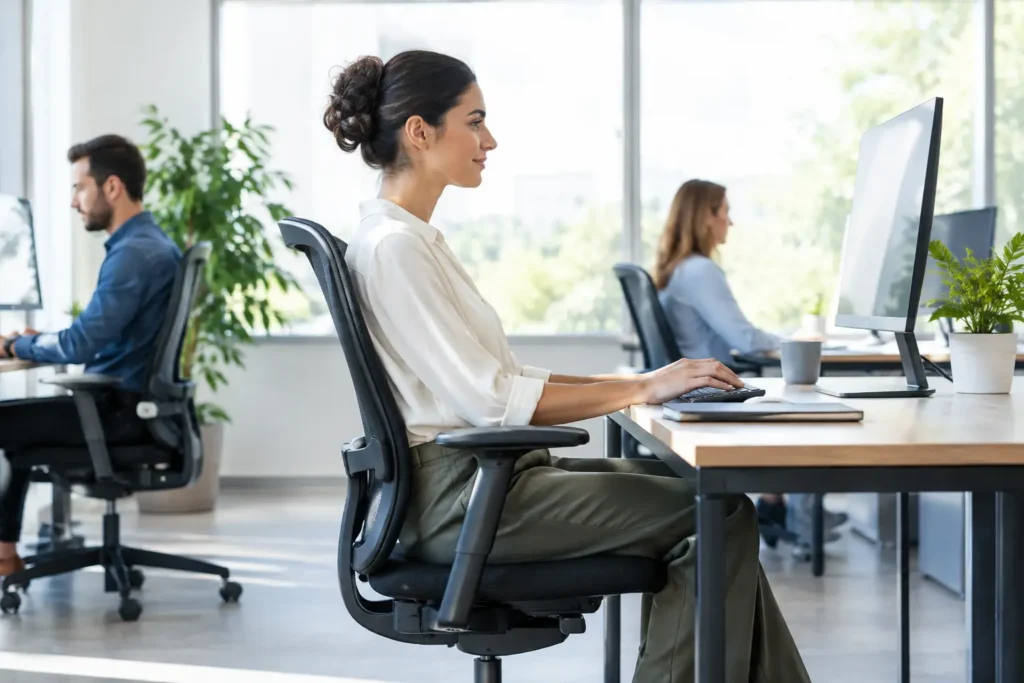
A workstation can look tidy, modern and fully equipped while still causing avoidable strain. Poor desk ergonomics often shows up gradually: an employee starts shifting in their chair by mid-afternoon, develops recurring neck tension or works around wrist discomfort rather than reporting it. For employers, the practical aim is not to create a perfectly uniform desk setup. It is to make it straightforward for people to adjust their workspace for their own body, tasks and working pattern.
Why desk ergonomics belongs in a wellbeing plan
Desk-based work places low-level, repeated demands on the body. Hours spent looking down at a laptop, reaching for a mouse or sitting without changing position can contribute to discomfort in the neck, shoulders, back, hands and wrists. A single factor rarely explains the issue. More often, it is the combination of workstation layout, prolonged sitting, workload pressures and a lack of movement during the day.
Good desk ergonomics supports prevention. It gives employees practical ways to reduce unnecessary strain before discomfort becomes a regular part of their working week. It also demonstrates that an employer has considered how work is carried out, not simply where it is carried out.
There is a productivity case too. Someone who is repeatedly distracted by aches, fatigue or an awkward setup may find it harder to concentrate. Small adjustments can make focused work more comfortable, particularly for employees who spend most of their day on screen-based tasks. The benefit is not a promise of zero pain or an instant fix for every health concern. It is a more supportive working environment with fewer avoidable barriers.
Start with the workstation, not a generic checklist
The best setup depends on the person and the work they do. A finance employee working with two large monitors has different needs from a colleague using a laptop for short meetings, or a customer service adviser switching frequently between calls and systems. Employers should provide a clear baseline, then make adjustment easy.
Chair adjustment creates the foundation
Employees should be able to sit back in the chair with their lower back supported. Chair height should allow feet to rest flat on the floor where possible, with thighs broadly level and enough clearance beneath the desk to move comfortably. If a desk cannot be lowered and the employee needs to raise their chair to reach the work surface, a footrest may be appropriate.
Armrests can be helpful when they allow relaxed shoulders and do not prevent the chair from moving close enough to the desk. They should not force the arms upwards or make an employee reach forward. This is why adjustable equipment is useful, but only when people know what to adjust and feel permitted to do so.
Position screens for neutral viewing
A screen placed too low encourages the head to tilt forwards. One placed too high can lead to raised shoulders or neck extension. As a practical starting point, the top of the visible screen should be around eye level or slightly below, with the screen roughly an arm’s length away. Employees who wear varifocal lenses may need a different position so they are not tipping their head back to see clearly.
Where two screens are used equally, position them close together with the join directly ahead. If one screen is used most of the time, that screen should sit centrally and the second should be to the side. Screen glare matters as much as height. Moving a monitor away from a bright window or adjusting blinds can be more effective than asking someone to work through reflections all day.
Keep regularly used items close
The keyboard and mouse should sit close enough to avoid reaching. Employees should be able to keep their elbows near their sides, shoulders relaxed and wrists broadly straight while typing or using the mouse. A keyboard placed too far away tends to bring the shoulders forwards, while a mouse positioned beyond the keyboard can strain the arm over time.
For laptop users, the main trade-off is portability versus posture. A laptop alone puts the screen and keyboard at a fixed distance from each other, so improving one can compromise the other. For longer periods of desk work, a laptop stand with a separate keyboard and mouse is usually the more practical arrangement. For occasional use, encouraging regular movement and sensible positioning may be sufficient.
Movement is part of desk ergonomics
Even an excellent chair and monitor setup cannot make eight uninterrupted hours of sitting ideal. The body benefits from variation. Employees do not need a complicated routine or a timer that disrupts their work, but they should be encouraged to change position regularly, stand for appropriate tasks and take normal screen breaks.
This can be built into everyday working habits. Walking to speak with a colleague, standing during a short call, collecting printing personally or taking a brief stretch between meetings all create useful changes in posture. For hybrid teams, managers should make this expectation clear at home as well as in the office. Flexible working should not mean employees are left to work indefinitely from a kitchen chair or sofa.
Office yoga, guided movement sessions and posture-focused webinars can reinforce these messages without treating ergonomics as a one-off compliance exercise. They give teams a practical prompt to notice how they feel during the day and act before discomfort becomes normalised.
Make home and hybrid setups manageable
Hybrid working creates a genuine challenge for employers because home spaces vary widely. Not every employee has a dedicated room, a height-adjustable desk or space for multiple screens. The answer is not to demand an ideal home office from everyone. It is to set reasonable standards, offer practical guidance and identify where additional equipment or an individual assessment may be needed.
A suitable home setup should provide a stable surface, supportive seating and a screen position that does not require prolonged bending of the neck. Dining tables can work for temporary tasks, but they are rarely designed for a full working day. Employees using them regularly may need a laptop stand, separate input devices or a better chair arrangement.
Employers should also consider how equipment is requested and approved. A simple process reduces delay and avoids employees buying unsuitable items themselves. Clear ownership, sensible budgets and a named contact for workstation concerns make the policy easier to use in practice.
Train managers to spot early issues
Managers are not expected to diagnose musculoskeletal conditions. They can, however, create a culture where employees feel able to raise concerns early. Repeated references to headaches, tingling, sore shoulders or back pain should prompt a supportive conversation about the work setup, workload and available adjustments.
A workstation assessment may be needed where discomfort persists, an employee has a known condition, is returning after injury or their role involves specialist equipment. Adjustments should be individual and reviewed after implementation. Providing a chair or monitor arm without checking whether it has improved the situation can leave the original problem unresolved.
It is also worth separating ergonomic concerns from broader health risks. Blood pressure, weight and body composition cannot explain whether a chair is correctly adjusted, but accessible health checks can encourage employees to pay attention to their wider wellbeing. A workplace health screening kiosk, such as those provided by Relaxa, can give employees immediate core biometric results alongside a wider programme of movement, mental wellbeing and preventative health support.
Measure participation and improve the approach
Employers do not need intrusive monitoring to understand whether their ergonomics support is working. Useful indicators include attendance at training, uptake of equipment requests, common themes from workstation assessments and anonymous employee feedback on comfort and confidence when setting up a desk.
Look for practical gaps. If many employees request laptop stands, consider making them standard issue for regular hybrid workers. If staff report that they lack time to take breaks, the issue may be meeting culture rather than furniture. If different sites have inconsistent equipment, a minimum workstation standard can improve fairness and simplify procurement.
The most effective desk ergonomics programme is visible in everyday behaviour: employees adjust their chair without hesitation, managers protect time for movement, and support is available before discomfort affects work. That makes healthier desk work easier to maintain, wherever the working day takes place.